
Silk Mobile
Table of Contents (Homepage)
- Overview
- Setting Up
- Getting Started
- How To
- Connecting Devices And Emulators
- Preparing Applications For Testing
- Managing Applications
- Recording Tests
- Working With Test Commands
- Adding Commands To Your Scripts
- Object Commands
- Click
- ClickCoordinate
- ClickIn
- ClickOffset
- Drag
- ElementGetProperty
- ElementGetTableRowsCount
- ElementListPick
- ElementListSelect
- ElementListVisible
- ElementScrollToTableRow
- ElementSendText
- ElementSetProperty
- ElementSwipe
- ElementSwipeWhileNotFound
- GetAllValues
- GetElementCount
- GetElementCountIn
- GetTextIn
- IsElementBlank
- IsElementFound
- IsFoundIn
- LongClick
- RunNativeAPICall
- SendWhileNotFound
- VerifyElementFound
- VerifyElementNotFound
- VerifyIn
- WaitForElement
- WaitForElementToVanish
- GetCoordinateColor
- DragDrop
- Application Commands
- Device Commands
- Web (Hybrid) Specific Commands
- Utilities Commands
- Monitoring Commands
- Configuration Commands
- ExtractLanguageFiles
- SetDefaultClickDownTime
- SetDefaultTimeOut
- SetDefaultWebView
- SetDragStartDelay
- SetInKeyDelay
- SetKeyToKeyDelay
- SetLanguage
- SetLanguagePropertiesFile
- SetShowImageInReport
- SetShowPassImageInReport
- SetShowReport
- SetSpeed
- SetThrowExceptionOnFail
- SetWebAutoScroll
- StartStepsGroup
- StopStepsGroup
- TextFilter
- Miscellaneous Commands
- Controlling Element Identification Rules
- Editing Test Objects
- Executing Test Scripts
- Report Of Executed Test
- Working From Code Environment
- Continuous Integration
- Layout Verification Tests
- Use Device Vitals Monitors
- Troubleshooting
- Terminology
Creating Your First Test On Windows Phone Device
Follow the steps below:
Step 1: To start recording a script on a mobile device with the recorder, you need to:
-
Connect your mobile device by USB to your computer (for device connectivity instructions please follow our "Connect Device" instructions)
-
Have the application instrumented and installed on the device (see "Native Application Instrumentation for Windows Phone").
Note: In this example we will use one of our demo instrumented applications for Windows Phone - eri-Bank
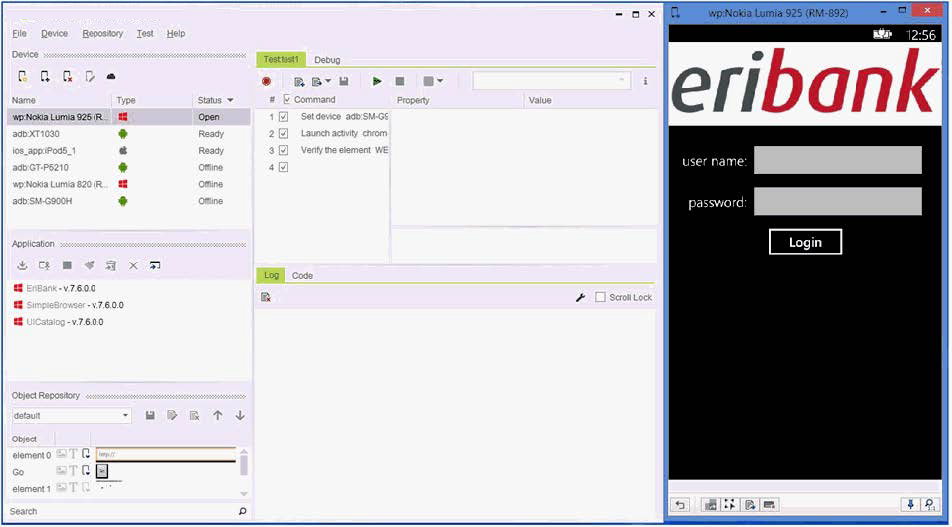
Step 2: In Silk Mobile go to the "Test" tab and click on the "Record" button.
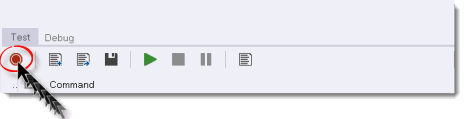
Step 3: Choose the device to be recorded, and choose the tested application name (for Native Recording)
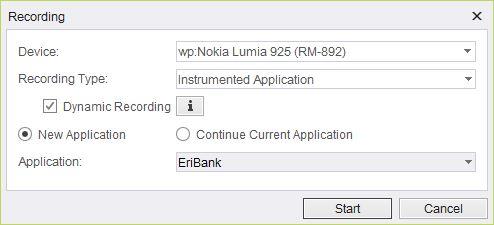
The recommended way of recording is '
Dynamic Recording
' which can be done by ticking the 'Use dynamic' button.
You can use other options of
Recording
according to your needs.
Step 4: A progress bar will appear. Silk Mobile prepares the Windows Phone application for testing. Once completed the application will be opened on the device and you can start recording steps of the scenario you want to automate.
Note: You should perform the actions on the device-refl ection window only! Actions executed directly on the device will not be recorded.
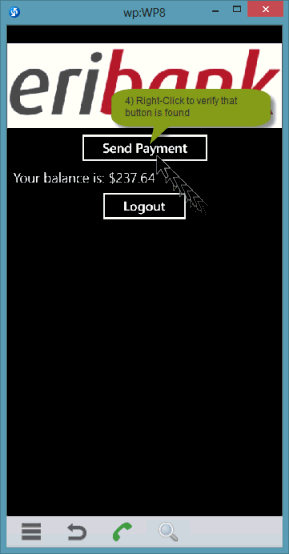
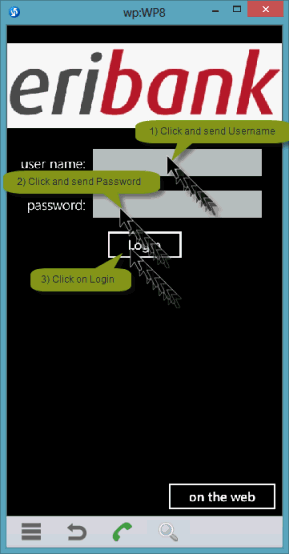
Step 5: In this example, we wish to run a test on the "EriBank" application that logs into my bank account, so we will do the following sequence of actions:
-
Click on the "Username" textfield, enter 'company';
-
Click on "Password" textfiled, enter 'company';
-
Click on the "Login" button;
-
Right-click on the "Make Payment" button to verify that it is found;
-
Click on the Logout button;
Note: General thumb rules worthwhile obeying while recording:
-
Click the center of images/icons/links;
-
Record slowly

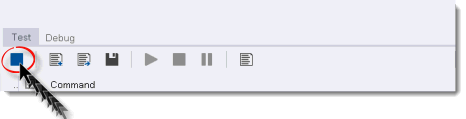
Step 6: Go back to the main window of Silk Mobile and click on the "Stop Recording" button.
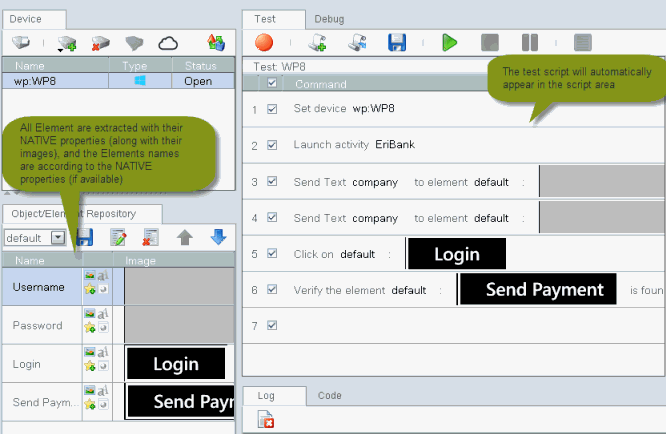
Step 7: You will see a progress bar indicating that the record data is being analyzed, and the test script will then appear in the script area.
Note: The script you recorded can later on be edited. (please refer to the "Edit Test Commands" & "Edit Test Objects" section in the guide for instructions on how to edit)...
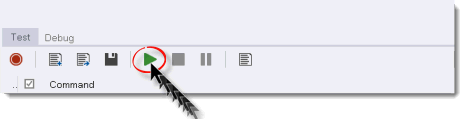
Step 8: Click the " Play " button to run the script:
Step 9: Once the test has been executed, you will receive a report indicating for each test step whether it was executed successfully or not, including a screen shot of the tested application in run time.
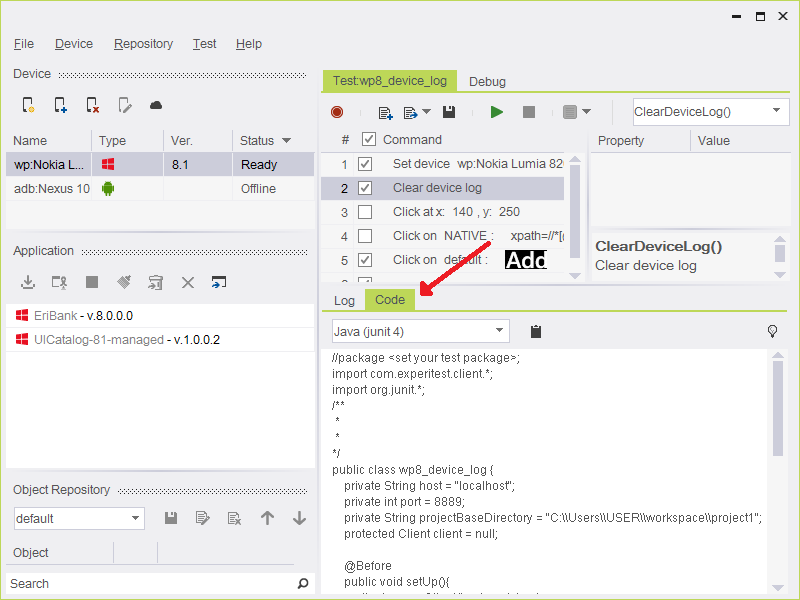
Step 10: You can export code in your preferred programming/scripting language that is to replay the actions of the test.
Step 11: Select ‘Code’ tab in the main window of Silk Mobile.
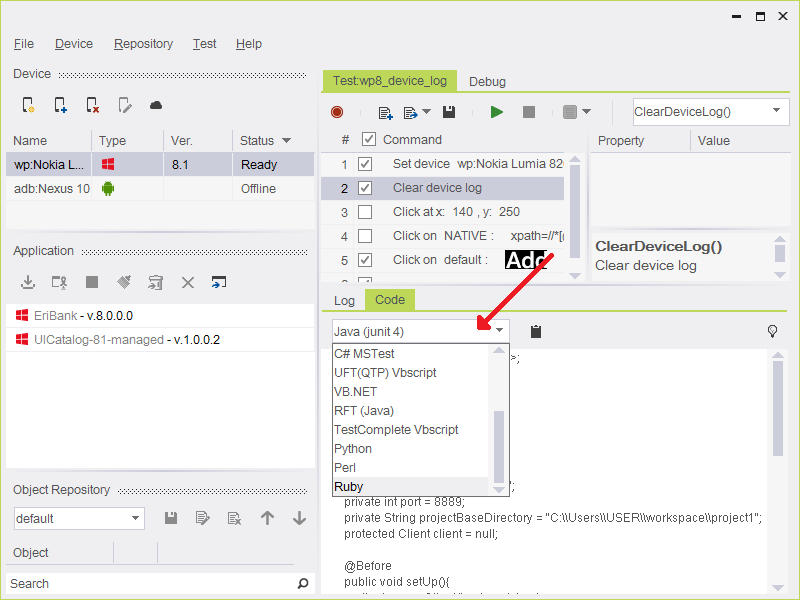
Step 12: C hoose the language you prefer:
Step 13:
Click on ‘Copy to Clipboard’ icon  .
.
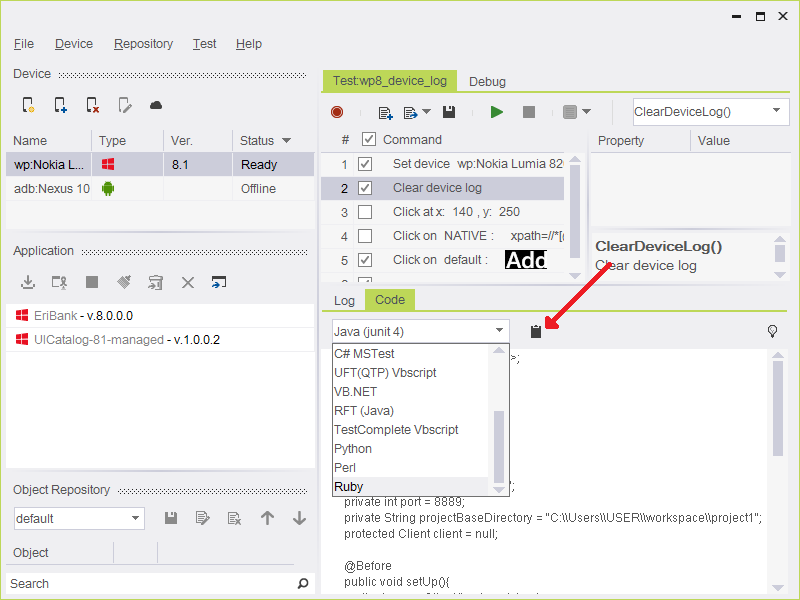
The generated code has been copied to the clipboard of your system.
Step 14: Paste the code to the development environment you are used to work and run the code from there while Silk Mobile continues running.